
Last Updated: November 21, 2026
Quick Summary
Screen tearing happens when the emulator sends frames out of step with the display's redraw. The most reliable fix is to turn on Vertical Sync (VSync) in your emulator or RetroArch video settings, which makes the emulator wait for the screen to finish each frame. If tearing persists, check that your frame rate and refresh rate match before trying other options.
- Turn on the on-screen FPS counter first to tell performance problems from sync problems.
- In RetroArch, set Vertical Sync under Settings, then Video to On.
- VSync can add a small amount of input delay, so test how responsive it feels.
- Enable Run Ahead in RetroArch if your device is fast enough to reduce that delay.
- Leave the frame rate limit off at first, since a mismatched limit can bring tearing back.
Table of Contents
- What Screen Tearing Looks Like and Why It Happens on Handhelds
- Checking Your Frame Rate and Refresh Rate Before You Change Anything
- Turning On VSync in RetroArch Settings
- Fixing Tearing on Android Retro Handhelds Step by Step
- Keeping Input Lag Low While VSync Is On
- Triple Buffering, Hard GPU Sync and Frame Limits: Trade-offs Compared
- Choosing the Right Handheld Setup for Smooth Retro Play
- Frequently Asked Questions
What Screen Tearing Looks Like and Why It Happens on Handhelds
Screen tearing is the visual glitch where the top and bottom halves of the picture seem slightly out of line, with a thin horizontal split running across fast-moving scenes. On a retro handheld, it shows up most during side-scrolling levels and anything with quick camera pans. Even on a capable handheld, the same game can still tear if the video sync settings do not match the screen.
Here is the simple cause. A screen redraws the picture many times per second, but the emulator may send a new frame at a different moment. When the two are out of step, the display shows parts of two frames at once.
Common causes include:
- The emulator's frame rate does not match the screen's refresh rate
- VSync is turned off in the emulator or the graphics driver
- A frame limit is set to a number the screen cannot match
- The display driver handles buffering poorly on the device
Screen tearing vs. stutter, judder and frame pacing
These four problems look alike but have different causes, so the fix matters.
- Screen tearing: a horizontal split in the picture during motion
- Stutter: the whole picture pauses or jumps, usually from dropped frames
- Judder: uneven motion, such as a pan that looks choppy even though it never splits
- Frame pacing: frames arrive at uneven intervals, which causes both judder and stutter
Before changing settings, check which one you see. Tearing needs sync settings. Stutter and frame pacing usually need a lower load or a different core.
Checking Your Frame Rate and Refresh Rate Before You Change Anything
Start by finding out what the game and the screen are actually doing. Many handhelds run at 60 Hz, while many classic consoles ran at slightly different speeds, such as about 59.7 Hz for NES-era output. A small mismatch like this is a common source of tearing.
Turn on the on-screen FPS counter in your emulator. Then play a scene with heavy motion and watch the number. If it sits well below the target, the problem is performance, not sync. If it holds steady near the target but the picture still splits, sync is the likely fix.
Keep a short note of your results before and after each change. This makes it easy to undo a setting that makes things worse.
Turning On VSync in RetroArch Settings
VSync (vertical sync) tells the emulator to wait until the screen finishes drawing a frame before sending the next one. This removes tearing in most cases. The trade-off is a small amount of extra input delay, which is covered later.
To enable it in RetroArch:
- Open the main menu and go to Settings, then Video
- Find Vertical Sync and set it to On
- Check Hard GPU Sync only if tearing remains after step 2
- Save your changes with Save Core Overrides so the setting stays for one system
RetroArch also offers a Frame Rate Limit option. Leave it off at first. Setting a limit that does not match your screen can bring back tearing.
Many users find that the RetroArch VSync settings work well for most systems but need tuning for others. Test two or three games from different consoles before deciding the setup is final.
Fixing Tearing on Android Retro Handhelds Step by Step
Android handhelds from different makers often hide the same display and sync controls under different names, so a blind settings sweep wastes time.
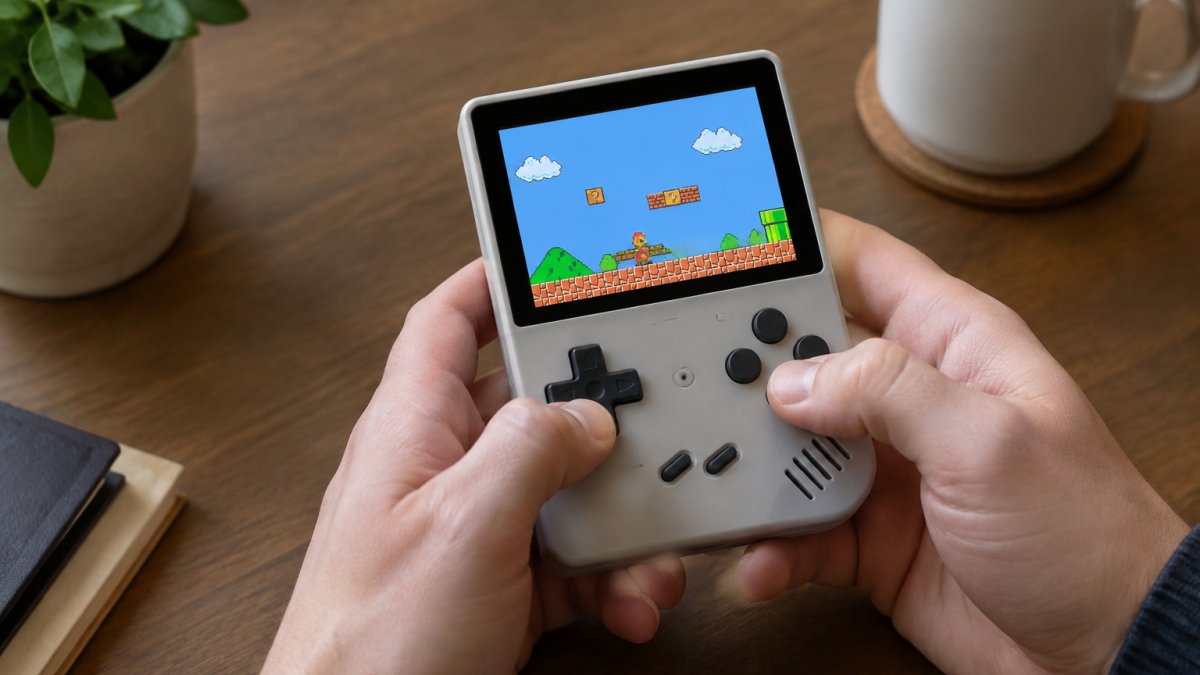
Step 1: Confirm the tear is sync-related, not performance-related. Turn on the emulator's FPS counter and play a fast side-scroller for two minutes. If FPS holds steady near the target but the picture still splits horizontally, go to Step 2. If FPS drops below target, skip to Step 5, sync settings will not fix a performance shortfall.
Step 2: Check the Android display refresh rate. Open Settings > Display > Advanced > Refresh rate (or the equivalent on your device) and note the active rate. Many Android handhelds default to 60 Hz, but some switch dynamically or offer 90 Hz/120 Hz panels.
Step 3: Enable sync inside the emulator, not just the frontend. In RetroArch for Android, go to Settings > Video > Vertical Sync and set it to On.
Step 4: Test one change at a time. Play the same tearing scene after each adjustment. A common pattern is that VSync alone fixes 2D systems but not 3D-heavy cores, where frame pacing also matters.
Step 5: Address performance shortfalls before touching sync. If FPS is below target, lower internal resolution, switch to a lighter core (e.g., a less accurate SNES core), disable shaders and overlays, and close background apps.
Step 6: Update firmware and graphics drivers only after software settings fail. Back up your game folders and save states first. Some Android handhelds expose a GPU driver option in developer settings or a vendor tool; change one driver at a time and keep notes so you can roll back.
Watch out: Changing the display refresh rate, VSync, and GPU driver all at once makes it impossible to know which change helped, and some Android builds reset display mode after reboot, so verify the setting persisted before you conclude the fix worked.
Expected result: the horizontal split disappears during fast scrolling, FPS remains steady, and input response stays acceptable for the games you play most. If tearing returns only in specific games, treat it as a per-core issue and save a core override rather than changing global settings.
Keeping Input Lag Low While VSync Is On
VSync can add a small delay between pressing a button and seeing the result. This matters most in fast platformers and fighting games.
To reduce it:
- Use Run Ahead in RetroArch if your device is fast enough. It runs the next frame early to cut delay.
- Lower the load by choosing a lighter core or reducing internal resolution.
- Turn off extra screen filters, which can add processing time.
- Keep the battery charged, since some devices reduce performance on low power.
A quick check: play the same level with and without VSync and compare how responsive the jump feels. If the delay is too noticeable for the game you play most, consider the alternatives in the next section.
Triple Buffering, Hard GPU Sync and Frame Limits: Trade-offs Compared
Most guides list these options but stop at the table. The useful question is not which one is best, but which one matches the cause of your tear.
| Option | Mechanism | Main trade-off | When to use it |
|---|---|---|---|
| VSync | Blocks frame handoff until the display finishes its refresh cycle | Adds input lag proportional to refresh interval | Default first fix for most 2D and 3D retro cores |
| Hard GPU Sync | Forces the GPU to finish and present frames in order, reducing queued frames | Can reduce performance on weak SoCs and increase stutter if the device cannot keep up | Tearing that survives VSync on capable hardware |
| Triple buffering | Keeps an extra rendered frame ready so the GPU never waits empty | Uses more memory; can add latency if not paired with a frame limit | Stable frame rates with headroom, especially on 3D cores |
| Frame limit | Caps emulator output to a target rate | A limit that does not match the display refresh causes tearing | Games that run too fast or cores that output above the panel rate |
Refresh-rate and frame-rate matching for original console speeds. This is the part most guides skip. Classic consoles did not all output exactly 60 Hz: NES-era hardware is often cited around 60.09 Hz, PAL consoles ran at 50 Hz, and some arcade boards used odd rates. When an emulator targets 60.000 FPS on a 60 Hz panel, the mismatch is tiny but real, and it can produce periodic tearing or judder in scrolling scenes.
How the options interact. VSync and Hard GPU Sync are not additive in the way many users assume, enabling both can increase stutter on weak devices because the GPU is forced to finish every frame before presentation. Triple buffering without a frame limit can actually increase latency, since the extra buffer fills with stale frames.
A common mistake is setting a frame limit of 60 on a panel that runs at 59.94 Hz or 60.09 Hz and expecting tearing to vanish. The limit looks correct but the phase drift remains. Where the emulator exposes it, match the limit to the panel's reported rate rather than a round number.
Watch out: On some handhelds, triple buffering and Hard GPU Sync are exposed as toggles that silently disable each other or reset after a core change, verify the setting is still active after you load a different game, and save a core override if it is not.
Choosing the Right Handheld Setup for Smooth Retro Play
Tearing is easier to avoid with the right hardware from the start. If you are still deciding whether a handheld is worth it, see how handheld emulators compare on price, game access, and battery life. A screen with a steady refresh rate, enough processing power for your favorite consoles, and good driver support makes sync settings work reliably.
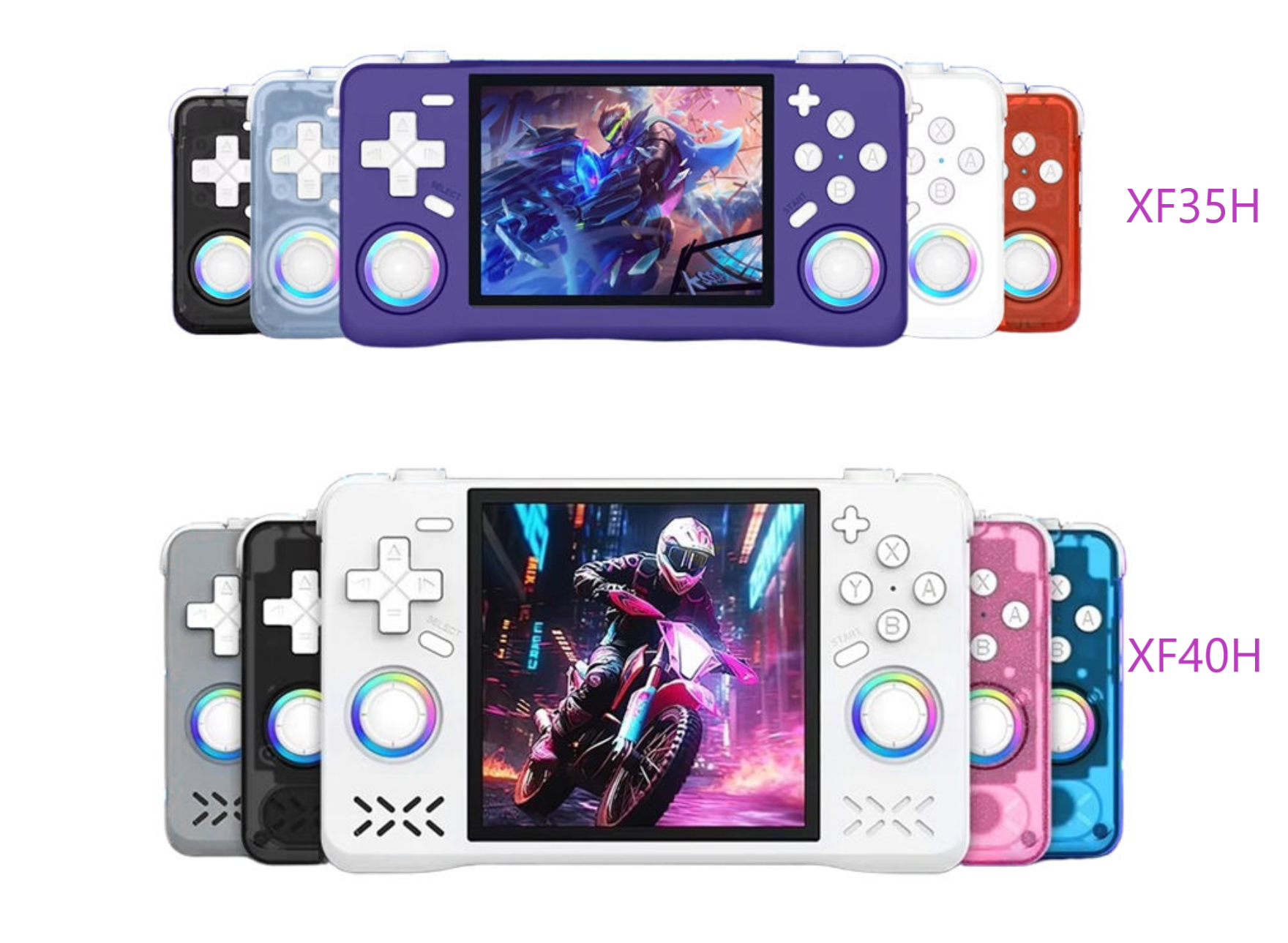
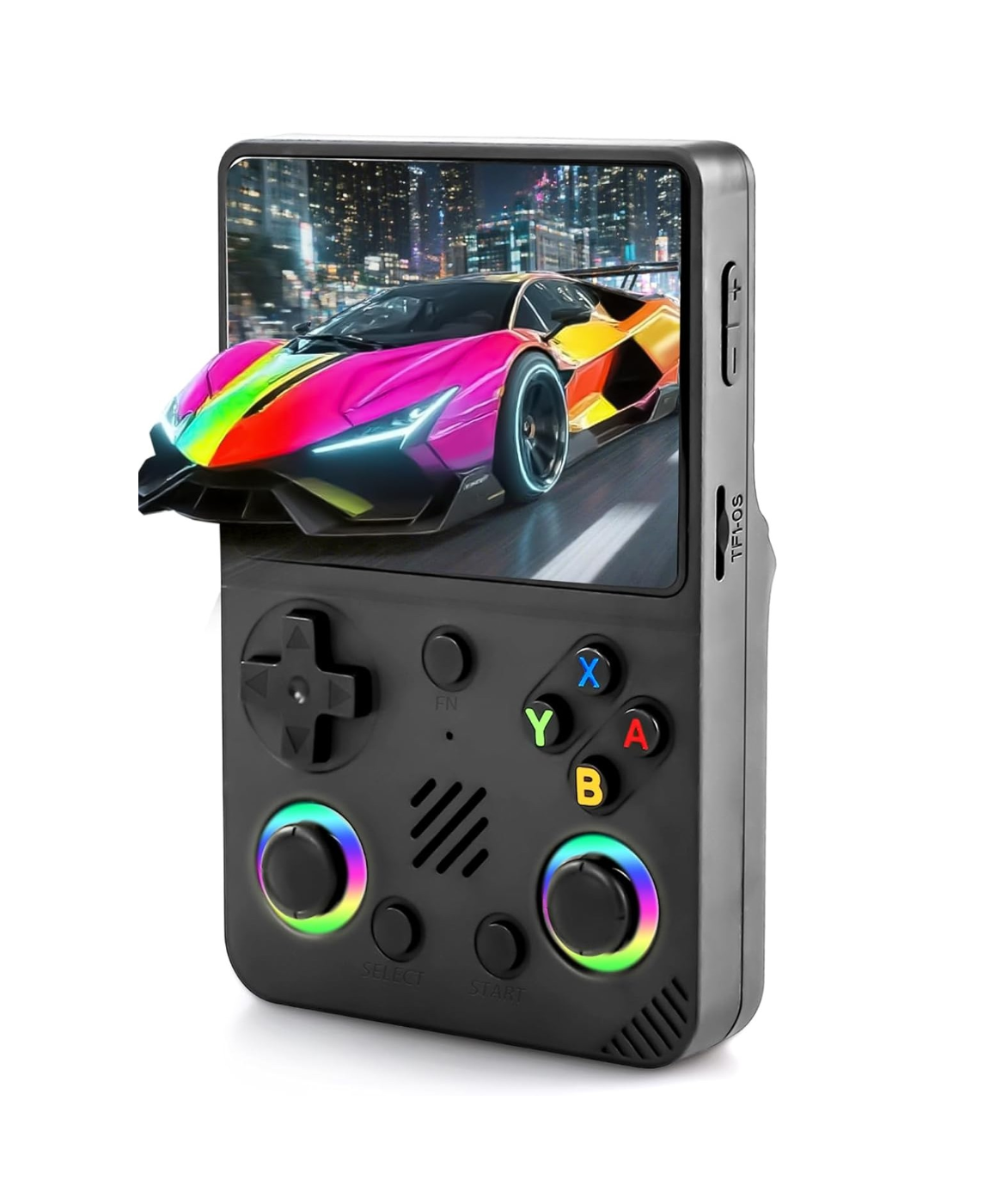
If you are shopping, look at the Old Arcade XF40H / XF35H Retro Handheld, which offers a 4" or 3.5" IPS screen and a preloaded game library. You can compare its full specs and features side by side before deciding. The Old Arcade R36 Ultra Handheld, with its 4" IPS display, is another option to consider.
Display type also affects how motion looks, since screen quality changes how tearing and judder appear. Read IPS versus LCD handheld displays to see how the two panel types differ before you buy.
Frequently Asked Questions
How do I decrease screen tearing on a retro handheld?
Start by enabling VSync in your emulator's video settings, then match your frame rate limit to the console's original speed so the emulator is not rendering frames faster than the display can show them. On Android-based handhelds, check that your display driver and emulator video driver are set to a stable option such as OpenGL or Vulkan, and restart the emulator after each change. Test one setting at a time so you can see exactly which change removed the tearing.
Should I turn on VSync to stop screen tearing in an emulator?
In most cases, yes. VSync forces the emulator to present each frame in step with the screen's refresh rate, which removes the horizontal tear line. The trade-off is a small increase in input latency, so if the game feels sluggish, pair VSync with a frame limit or try triple buffering. If tearing persists with VSync on, the emulator's frame rate is probably not matching the display's refresh rate.
Does VSync add input lag to retro games?
VSync can add a few milliseconds of input lag because the emulator waits for the display's next refresh before showing a new frame. For most retro titles this is hard to notice, but fast action games may feel slightly less responsive. Hard GPU sync or a lower-latency sync option can reduce this, though compatibility varies by device and driver, so test each option and keep the one that feels right.
How can I tell whether screen tearing is caused by the emulator or the display?
Tearing shows as a horizontal line where the top and bottom halves of the picture are out of step. Stutter and judder look different: the whole image jerks or repeats frames at uneven intervals. Turn on the on-screen FPS counter, then compare it with the display's refresh rate. If the frame rate fluctuates while the tear remains, the problem is usually the sync setting or the display driver; if the frame rate is steady and tearing still appears, check the video output settings in your firmware.

