
Table of Contents
- Component vs Composite for Retro Gaming: Which Image Is Better?
- How Composite and Component Video Signals Work
- Image Sharpness, Color and Artifacts Compared
- Component vs Composite Side by Side: Specs and Compatibility
- RGB vs Component for Retro Gaming and Where S-Video Fits
- PS2 Component Cable and Composite Setup: Which Console Ports Do You Need
- Choosing Your Retro Setup: Which Cable and Console to Buy Next
- Frequently Asked Questions
Component vs Composite for Retro Gaming: Which Image Is Better?
Last Updated: November 24, 2026
Component video almost always looks better than composite on a retro console, and the gap is easy to see once you connect both. This guide walks through what each signal does to the picture and which setup suits you. The short version: component gives you sharper, cleaner color, while composite gives you a softer, more blended image that some players prefer for the original feel.
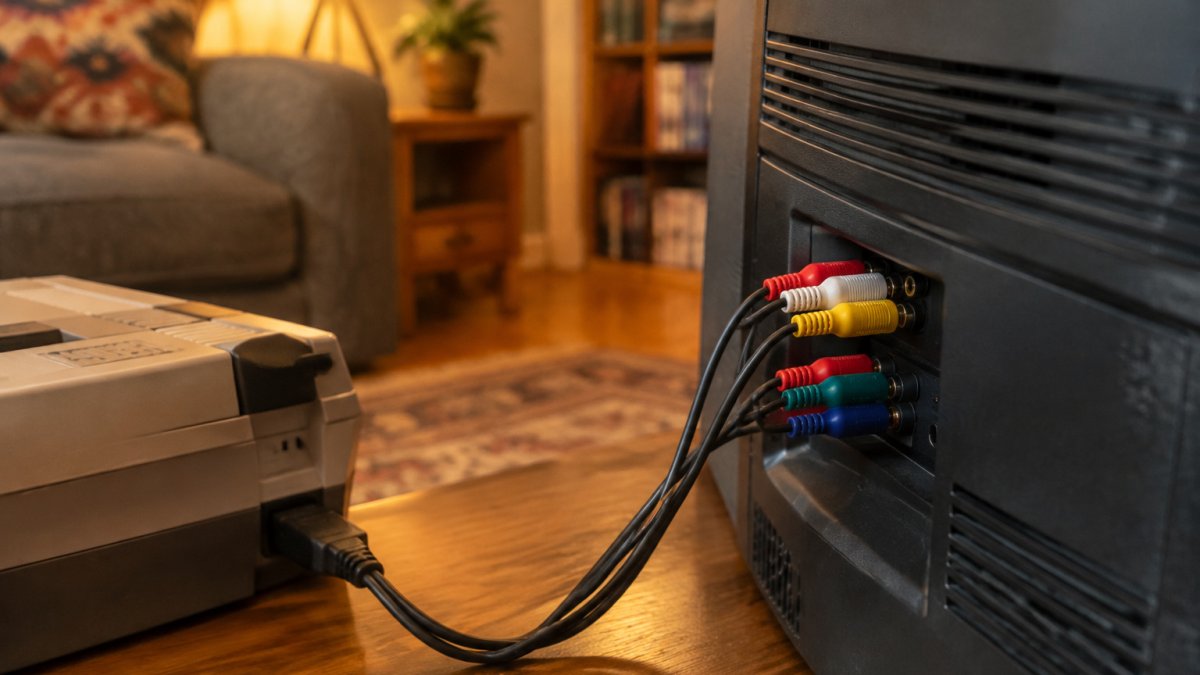
Component vs composite is a choice about how the video signal travels from console to screen. Composite sends the full picture through a single yellow plug. Component splits it into three separate signals, which keeps detail and color more intact. Whether you're setting up a vintage NES, a PlayStation 2, or a modern handheld, that single difference shapes what you see.
How Composite and Component Video Signals Work
Composite video combines brightness, color and sync information into one signal. The console sends everything down one wire, and the TV has to separate it back out. That separation is never perfect, which is why composite images look blurrier.
Component video splits the picture into three channels: one carries brightness and two carry color. Because the signal stays divided until it reaches the screen, less information is lost along the way. A common approach is to think of component as the cleaner path and composite as the simplest one.
Image Sharpness, Color and Artifacts Compared
Component is generally sharper in color clarity. Edges look crisper and colors hold their shape instead of smearing into neighboring areas.
Composite brings its own visual character. Fine patterns can shimmer, and you may see dot crawl, a moving dotted pattern along edges, or color bleeding, where color spills past its outline. Some retro fans find that softness suits older games, while others find it distracting.
Component vs Composite Side by Side: Specs and Compatibility
On paper the difference is simple: composite carries brightness, color, and sync together on one conductor, while component splits the picture into luma (Y) and two color-difference channels (Pb and Pr). In practice, compatibility is where most retro setups go wrong, because the cable is only one link in a chain that runs from the console's output, through the cable and any adapters, into the display's input and processing.
| Feature | Composite | Component |
|---|---|---|
| Signal type | Single combined signal | Three separate channels (Y/Pb/Pr) |
| Picture sharpness | Softer | Sharper |
| Color clarity | Can bleed or blur | Cleaner separation |
| Typical artifacts | Dot crawl, color bleeding | Minimal |
| Cable plugs | One yellow plug | Three color-coded plugs |
| Best for | Authentic soft look | Crisp, clean image |
Console-by-console output reality
- Nintendo Entertainment System (front-loader): composite only from the stock rear jacks; component requires internal modification or an external adapter.
- Super Nintendo (SNES): composite and S-Video on most models; component is not native and needs a mod or adapter.
- Nintendo 64: composite and S-Video; no native component output.
- Sega Genesis / Mega Drive: composite and RGB via the multi-out on many models; component usually requires an RGB-to-component transcoder.
- Sega Saturn: composite, S-Video, and RGB via the multi-out; component again needs a transcoder.
- Sony PlayStation 1: composite and RGB via the multi-out; component is not native.
- Sony PlayStation 2: composite, S-Video, and component (Y/Pb/Pr) from the multi-out on most models; this is one of the easiest consoles to run component natively.
- Nintendo GameCube: composite and S-Video on most models; component only on the rare Digital AV Out models with the official component cable.
- Microsoft Xbox: composite, S-Video, and component via the AV pack on most models.
Signal-chain and display setup
A clean component image depends on more than the cable. Check that the console actually outputs component, that the cable is wired for that console's pinout, and that the display accepts Y/Pb/Pr on the inputs you plan to use. Many modern TVs label component inputs as "Component/AV" and require you to select the correct input mode. If you route through a scaler or capture device, confirm it accepts 240p and 480i over component, because some inexpensive scalers mishandle 240p and introduce lag or drop the signal.
240p versus 480i behavior
Most retro consoles output 240p, a progressive signal that CRTs draw as a stable, scanline-heavy image. Composite and component both carry 240p, but component keeps the luma and chroma separate, so the scanlines and sprite edges stay cleaner. When a console or game switches to 480i, the display must deinterlace, and that processing can add latency or soften motion. On a CRT, 240p and 480i are handled natively; on a modern display, the scaler's handling of those modes matters as much as the cable choice.
Is upgrading from composite worthwhile?
If your console has native component output and your display accepts it, the upgrade is usually visible: sharper edges, less dot crawl, and cleaner color. If your console only offers composite, the practical path is often S-Video or RGB with a transcoder rather than a direct component cable. A common pattern is to upgrade the console with the best native output it supports, then match the display and any scaler to that signal.
Watch out: A component cable does nothing if the console lacks component output or the TV only accepts composite; confirm both ends of the chain before buying.
RGB vs Component for Retro Gaming and Where S-Video Fits
RGB and S-Video are two other analog options you'll see in the same conversation. RGB separates red, green and blue signals and usually produces the sharpest analog image, though it is less common on consumer TVs. S-Video separates brightness from color, so it sits between composite and component in quality.
For most retro setups, component is the practical upgrade from composite. If your console supports RGB, that can edge it out, but component is easier to find. Old Arcade's HDMI-output consoles, such as the U36, sidestep these analog choices entirely.
PS2 Component Cable and Composite Setup: Which Console Ports Do You Need
The PlayStation 2 is a console with native component output, which makes it a useful example of how to choose a cable. On the back of the console you will find a multi-out port that carries composite, S-Video, and component (Y/Pb/Pr) depending on the cable you attach. The single yellow composite plug and the three component plugs use the same port, so the cable, not the console, determines which signal you get.
A practical decision tree for any retro console
- Identify the console's native outputs. Look at the rear ports and the model number. A PS2 multi-out supports component; a front-loader NES does not.
- Identify the display's inputs. Check whether the TV has a yellow composite jack, an S-Video jack, or a set of Y/Pb/Pr component jacks. Some sets share component and composite across the same jacks and require a menu setting.
- Match the strongest shared signal. If both console and display support component, use component. If the console only offers composite, use composite or step up to S-Video or RGB with a transcoder.
- Account for adapters and scalers. An RGB-to-component transcoder or an upscaler adds a link to the chain; confirm it passes 240p and 480i without lag or dropouts.
- Test and troubleshoot. If you get a picture but no color, you may be in the wrong input mode. If you get sync but a rolling image, check that all three component plugs are seated and that the display is set to Y/Pb/Pr rather than composite.
Cost and value by setup
A composite cable is usually the cheapest option and often comes with the console. A native component cable costs more and only helps if the console and display both support it. For consoles without native component, an RGB SCART cable plus a transcoder can cost more than the console itself, so it makes sense mainly for players who already own a compatible display or scaler. A plug-and-play HDMI retro console avoids the analog chain entirely and is the lowest-friction route for a modern TV.
Watch out: Some third-party multi-out cables are wired for only one console family; a cable that fits the port may not carry the signal you expect.
Console output and cable compatibility reference
Choosing Your Retro Setup: Which Cable and Console to Buy Next
If you want the sharpest image with the least hassle, go for a plug-and-play HDMI console. The U36 Retro TV Game Console offers 4K HDMI output, two wireless controllers and 128GB of storage with 40+ emulators, so you skip the component-versus-composite question entirely. For a simpler starter option, the Old Arcade Classic Console packs 771 built-in games and connects with a single HDMI cable.


If you prefer the analog look, a composite or component cable paired with a CRT or compatible TV is one route to consider.
The U36 Retro TV Game Console is a practical option for players wanting a clean image on a modern screen. Explore the U36 Retro TV Game Console for the full specs.
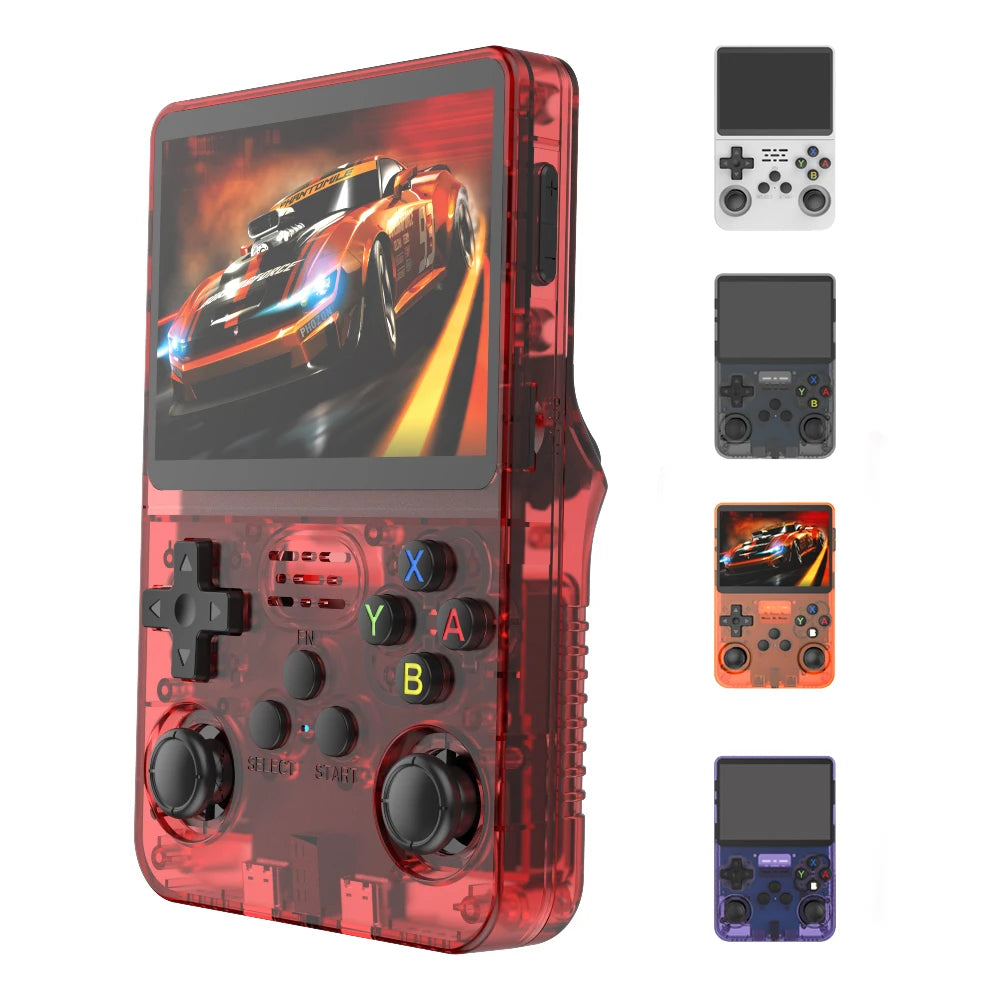
Choosing the right retro setup should feel as fun as playing the games. Old Arcade builds plug-and-play consoles that make classic gaming easy on today's TVs, so you can spend less time on cables and more time on the couch. Get started with the U36 Retro TV Game Console and relive your favorite games in clear, crisp HDMI.
Frequently Asked Questions
Is composite better than component?
For retro gaming, component is generally the better choice. Component splits the picture into separate luminance and color-difference signals, which keeps edges sharper and colors cleaner. Composite combines everything into one signal, so it produces a softer image with dot crawl and color bleeding. Composite still works on any TV with a yellow RCA input and is the only option for many older consoles, but if your console and display both support component, it will give you a noticeably cleaner picture.
What is the difference between composite and component video?
Composite video sends the picture, color and sync information through a single yellow RCA cable. Component video separates the signal into three cables, typically green, blue and red, which carry luminance and color information separately. Because the signals are not mixed together, component avoids much of the blur and color interference found in composite. Component is sharper and cleaner, but it only works on consoles and displays that include component outputs or inputs.
Do you need a special component cable for a PS2?
Yes. A PS2 component cable is a separate accessory from the standard AV cable that ships with the console. It has three RCA plugs for the video signal and is designed for the PS2's component output. Check the cable's label for PS2 compatibility, since some component cables only work with certain consoles. You will also need a TV with component inputs to use it, and some PS2 games only enable component output if they support progressive scan.
Does component video make retro games look better on a CRT?
Component video usually looks better on a CRT than composite, because the sharper signal reduces the softness and color bleeding that composite introduces. However, the improvement depends on the console, the game and whether the CRT accepts component input. Many CRT televisions only have composite or S-Video inputs, so the best available signal may be S-Video or RGB instead. Test the setup with your own games to see the difference.

